Note: This article is part of a series on Figma Fundamentals.
This lesson covers the exploration of Figma’s plugin ecosystem, the integration of Figma with third-party tools for enhanced collaboration, and the use of plugins to customize and augment Figma’s functionality to suit specific design needs.
Exploring Figma’s Plugin Ecosystem
Figma offers a diverse ecosystem of plugins that extend its functionality and support a wide range of design needs.
Installing Plugins
Access Figma’s plugin library through the Community tab in the Figma app or via Figma’s website. You can browse, install, and manage plugins directly within Figma.
Using Plugins
Once installed, plugins appear in the side panel within Figma. From there, you can run plugin features and use them to support your design workflows.
Integrating with Third-Party Tools
Figma supports integrations with third-party tools that help teams collaborate and stay aligned.
Seamless Workflows
Integrations with tools like Slack, GitHub, and others streamline collaboration by enabling teams to embed designs, share feedback, and synchronize design updates directly within those platforms.
Cross-Platform Functionality
Integrations help bridge communication gaps between Figma and other platforms, enabling teams to work efficiently across different environments.
Customizing Figma with Plugins
Plugins empower users to tailor Figma to their specific needs and increase productivity.
Enhanced Functionality
Plugins can extend Figma’s capabilities for tasks like data visualization, prototyping, accessibility checks, and more.
Improved Collaboration
Some plugins focus on collaboration, supporting workflows like design handoff, team coordination, and operational consistency.
Exercise: Utilizing Plugins
In our pursuit of hands-on learning, I’ve curated an engaging exercise to explore the principles discussed in this lesson. Install the plugins below and experiment in Figma. This exercise will help solidify your understanding and build real-time proficiency.
Recommended Plugins
Color Contrast Checker
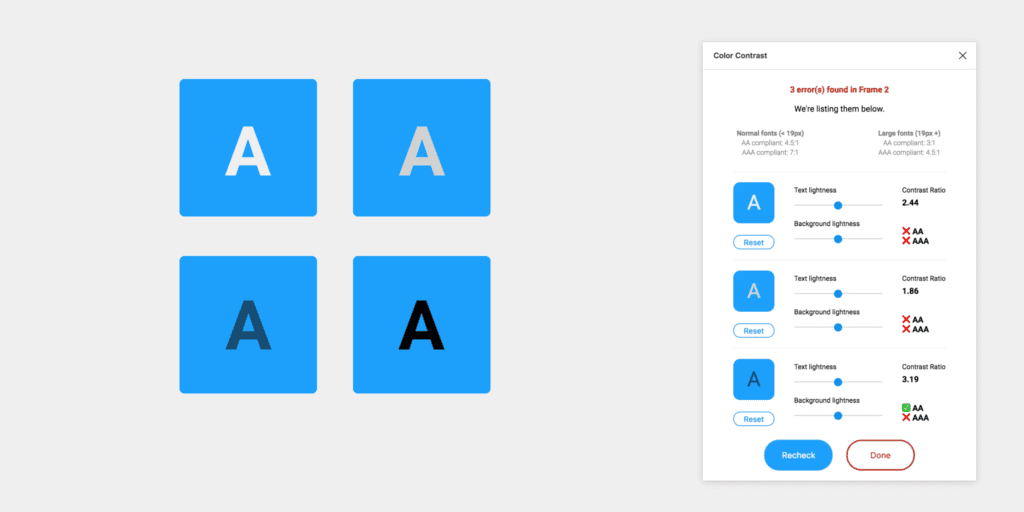
This plugin checks the color contrast ratio of all visible text in a frame and provides feedback on whether it meets WCAG AA and/or AAA compliance. Click the “Try it out” button to experiment in a Figma file.
Lorem Ipsum
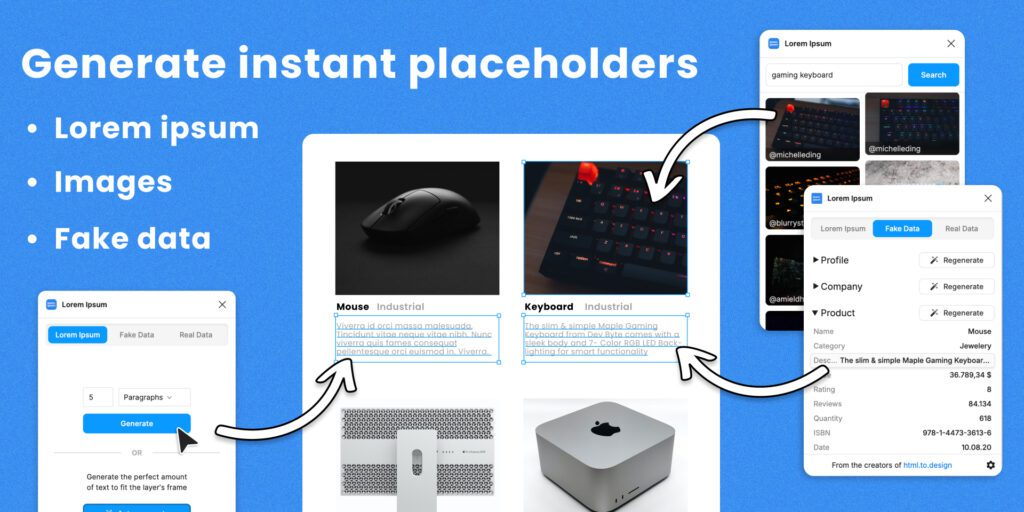
Fill your designs with placeholders in a click: text, images, and even data. Generate Lorem Ipsum to fill text layers, fill shapes with images from Unsplash, and populate designs with fake data such as profiles or company info. Click the “Try it out” button to experiment in a Figma file.
Unsplash
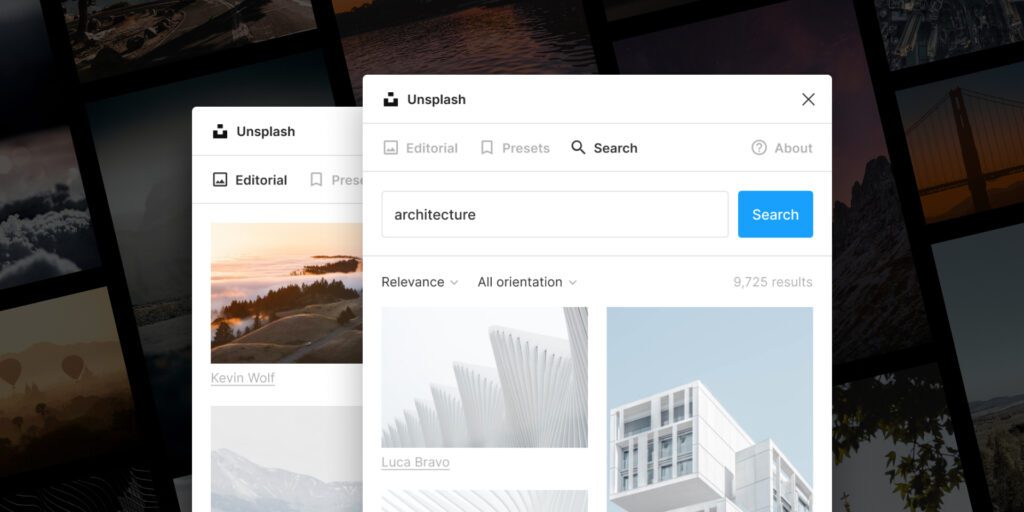
Insert beautiful images from Unsplash into your designs. The Unsplash License allows images to be used freely for both commercial and personal projects. Click the “Try it out” button to experiment in a Figma file.
Parting Words
As we conclude this week’s lesson on Figma Fundamentals, thank you for being part of the learning journey. Join me again next week for more as we continue to explore Figma.
Until next time, keep practicing, experimenting, and refining your skills. Remember, design is a journey of continuous improvement!
Want to continue the conversation? Drop your thoughts in the comments below. If you found today’s article helpful, please consider sharing it with your network.